
Canon MF650C Driver: Complete Download, Install & Troubleshooting Guide
Getting your Canon MF650C printer running correctly starts with one critical step — installing the right driver. Without it, your printer won’t communicate with Windows or macOS properly. Many users face printing failures, scanner errors, or connection problems simply because they’re using the wrong driver version or an outdated one. This guide covers everything: downloading, installing, updating, and troubleshooting the Canon MF650C driver across all major Windows versions and macOS.
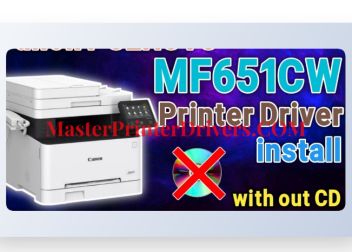
Canon MF650C Series: Quick Overview
The Canon MF650C is part of Canon’s i-SENSYS MF650C Series — a line of compact color laser multifunction printers (MFPs) designed for small offices and home offices. The series includes three main models:
| Model | Features |
|---|---|
| Canon i-SENSYS MF651Cw | Print, Copy, Scan + WiFi |
| Canon i-SENSYS MF655Cdw | Print, Copy, Scan, Duplex + WiFi/LAN |
| Canon i-SENSYS MF657Cdw | Print, Copy, Scan, Fax, Duplex + WiFi/LAN |
All three models share the same driver package. So if you’re looking for the Canon MF651Cw driver, you’ll find it inside the MF650C Series driver bundle.
Key specs of the MF650C lineup:
- Color laser printing with up to 22 ppm
- USB, WiFi, and LAN connectivity
- 600 x 600 dpi resolution
- Supports Windows 7, 8, 8.1, 10, 11 (32-bit and 64-bit)
- Compatible with macOS via AirPrint or dedicated drivers
What Drivers Are Available for Canon MF650C?
Canon provides several driver types for the MF650C series. Each serves a different purpose:
1. MF Drivers (Full Package)
This is the recommended all-in-one driver package. It includes:
- Generic Plus UFR II Printer Driver
- Generic Plus PCL6 Printer Driver
- Generic Plus PS3 Printer Driver
- Generic FAX Driver
- ScanGear (scanner driver)
File size: ~271 MB
Supports: Windows 7 x64, 8.1 x64, 10 x64, 11
2. Generic Plus UFR II Printer Driver
This is Canon’s proprietary high-performance print language driver. It offers faster processing and better color output compared to standard PCL drivers.
- Latest version: V3.31 (November 2025)
- Supports: Windows 10 (64-bit), Windows 11
- File size: ~68 MB
3. CARPS2 Printer Driver
An older driver format, still used in some environments.
- Latest version: 30.95.0.0 (December 2022)
- Supports: Windows 7, 8, 8.1, 10, 11 (32-bit and 64-bit)
4. Generic UFR II V4 Printer Driver
A lightweight alternative to the full MF Drivers package.
- Version: v2.1
- Supports: Windows 8.1, 10, 11
5. ScanGear Driver (Scanner Only)
If you only need the scanner function, install ScanGear separately. This is important when asking: how do I install a Canon scanner in a PC?
6. Generic FAX Driver
Only needed for models like the MF657Cdw that include fax functionality.
Canon MF650C Driver: Windows Compatibility at a Glance
One of the most searched topics is which driver works for which Windows version. Here’s a clear breakdown:
| Operating System | Driver Available? | Recommended Driver |
|---|---|---|
| Windows 11 (64-bit) | ✅ Yes | Generic Plus UFR II V3.31 or MF Drivers V7.20 |
| Windows 10 (64-bit) | ✅ Yes | Generic Plus UFR II V3.31 or MF Drivers V7.20 |
| Windows 10 (32-bit) | ✅ Yes | MF Drivers package |
| Windows 8.1 (64-bit) | ✅ Yes | MF Drivers V7.20 |
| Windows 8.1 (32-bit) | ✅ Yes | MF Drivers package |
| Windows 7 (64-bit) | ✅ Yes | MF Drivers V7.20 |
| Windows 7 (32-bit) | ⚠️ Limited | CARPS2 or older package |
| macOS | ✅ Via AirPrint | AirPrint (built-in) or VueScan |
Canon MF650C Driver Windows 11
Windows 11 is fully supported. Use the Generic Plus UFR II V3.31 or the MF Drivers V7.20 package. Both are available from Canon’s official support page.
Canon MF650C Driver Windows 10
Windows 10 (both 32-bit and 64-bit) is fully supported. The MF Drivers full package is the best option here as it includes the scanner driver (ScanGear).
Canon MF650C Driver Windows 7 64 Bit
Windows 7 x64 is supported via MF Drivers V7.20. This package specifically lists Windows 7 x64 as a supported OS. Download and install as described below.
Canon MF650C Driver Windows 7 (32-bit)
32-bit Windows 7 support is more limited. The CARPS2 driver (version 30.95.0.0) supports x86 architecture. Check Canon’s official page to confirm availability.
How to Download the Canon MF650C Driver (Step-by-Step)
How can I download the Canon printer driver? Follow these steps carefully.
Official Canon USA Download Steps
- Open your browser and go to: https://www.usa.canon.com/support/software-and-drivers
- In the search box, type “MF650C” or your exact model (e.g., MF651Cw)
- Press Enter and select your printer from the results
- Choose your Operating System from the dropdown menu
- You’ll see a list of available drivers. Look for:
- MF Drivers — best for full functionality (print + scan + fax)
- Generic Plus UFR II — for print only, latest version
- Click Download on your preferred driver
- Save the .exe file to your computer
Canon Europe Users
Go to: https://www.canon-europe.com/support and search for your model.
Canon Asia / Singapore Users
Go to: https://sg.canon/en/support/download for Asia-Pacific downloads.
Canon MF650C Driver Free Download
All official Canon drivers are completely free. You never need to pay for a Canon driver. If a website asks you to pay, it’s not an official Canon source. Always use Canon’s official regional support portals.
⚠️ Warning: Avoid third-party driver sites that bundle malware or adware with driver files. Stick to canon.com or your regional Canon support portal.
Alternative: VueScan Driver
If your OS isn’t officially supported by Canon (such as older macOS versions), VueScan offers a reverse-engineered Canon MF650C scanner driver. It works with macOS Sonoma and modern Windows versions. VueScan is a paid third-party software but reliable for unsupported OS scenarios.
How to Install Canon MF650C Driver on Windows
Before You Start
- Make sure your printer is powered on
- Do not connect the USB cable yet if installing via USB — the installer will prompt you when to connect
- Temporarily disable your antivirus if the installer gets blocked
- Run the installer as Administrator
Method 1: USB Connection Installation
- Download the MF Drivers package from Canon’s website
- Double-click the downloaded .exe file
- Accept the License Agreement
- When asked for connection type, select USB
- The installer will prompt you to connect the USB cable — do it now
- Windows will detect the printer automatically
- Follow on-screen prompts to complete installation
- Restart your PC when finished
- Print a test page to confirm success
Method 2: WiFi / Network Installation
- First, connect your Canon MF650C to your WiFi network directly from the printer’s panel (explained in the next section)
- Run the downloaded MF Drivers .exe installer
- Choose Network as the connection type
- The installer will scan your network for the printer
- Select your printer from the list
- Complete the installation wizard
- Restart your PC
Method 3: Manual Port Setup (Advanced)
If the installer doesn’t detect your printer automatically:
- Go to Control Panel → Devices and Printers → Add Printer
- Choose Add a local printer or network printer with manual settings
- Create a Standard TCP/IP Port and enter the printer’s IP address
- Select the Canon MF650C driver from the list or use Have Disk to point to the downloaded driver INF file
How to Connect Canon MF650C to Your PC
How to connect Canon MF650C? There are three main methods.
1. USB Connection
This is the simplest method:
- Use a USB-B to USB-A cable (not included in all packages)
- Connect one end to the printer and the other to your PC
- Windows will detect the device and may install a basic driver automatically
- For full functionality (scanning, fax), install the MF Drivers package manually
2. WiFi Connection
To connect wirelessly:
- On the printer control panel, press the Menu button
- Navigate to Network Settings → Wireless LAN Settings
- Select WPS Push Button if your router supports WPS — just press the WPS button on your router
- Alternatively, select Manual Setup and enter your WiFi SSID and password
- Once connected, the WiFi indicator on the printer will light up
- Note the printer’s IP address from Network Settings → TCP/IP Settings
- Run the driver installer on your PC and select Network connection
3. Wired LAN (Ethernet)
For MF655Cdw and MF657Cdw models:
- Connect an Ethernet cable from the printer to your router
- The printer will receive an IP address automatically via DHCP
- Install the driver on your PC using the Network option
Common Connection Errors
| Error | Cause | Fix |
|---|---|---|
| Printer not found during install | Firewall blocking scan | Temporarily disable firewall |
| WiFi connected but can’t print | IP address conflict | Assign static IP to printer |
| USB not detected | Driver not installed | Install MF Drivers first, then connect USB |
| Network printer shows offline | IP changed | Update port with new IP in Printer Properties |
Canon MF651Cw Driver: Specific Notes
The Canon MF651Cw driver is included inside the main MF650C Series driver package. You do not need a separate dedicated driver file for the MF651Cw.
When downloading, search for either:
- “i-SENSYS MF651Cw” on Canon’s regional support page, or
- “MF650C Series” which covers all three models in the lineup
The MF651Cw supports these driver types:
- Generic Plus UFR II Printer Driver
- Generic Plus PCL6 Printer Driver
- MF Drivers (full package with ScanGear)
Latest tested version for MF651Cw:
- MF Drivers V7.20 — Windows 7 x64 through Windows 11
- Generic Plus UFR II V3.31 — Windows 10 and 11 (64-bit)
For the Canon MF651Cw specifically, if you need scanner functionality, always install the MF Drivers full package rather than just the print-only UFR II driver.
Canon MF650C Series UFR II Driver: Deep Dive
What Is UFR II?
UFR II (Ultra Fast Rendering II) is Canon’s proprietary print language technology. It shifts most rendering work from the printer to the host computer (your PC). This results in:
- Faster first-page output
- Lower printer CPU usage
- Better color accuracy for office documents
- Smaller data transmission over the network
This makes UFR II ideal for office environments where multiple users send print jobs frequently.
UFR II vs PCL6 vs PS3
| Feature | UFR II | PCL6 | PS3 |
|---|---|---|---|
| Speed | Fastest | Fast | Moderate |
| Color accuracy | Excellent | Good | Best (for graphics) |
| Compatibility | Canon only | Universal | Universal |
| File size overhead | Low | Medium | High |
| Best for | Office docs | Mixed use | Graphics/design |
For most MF650C users printing standard documents and emails, UFR II is the best choice.
Generic Plus UFR II V3.31 (Latest — November 2025)
This update addressed security vulnerabilities:
- CVE-2025-7698
- CVE-2025-9903
- CVE-2025-9904
Always install the latest version to keep your system secure. Canon regularly patches security issues in their printer drivers, so running outdated drivers is a real risk.
How to Update Canon Printer Drivers
How do I update my Canon printer drivers? There are four methods.
Method 1: Manual Update from Canon Website (Recommended)
- Go to Canon’s official support page
- Search for your printer model
- Download the latest driver version for your OS
- Run the installer and follow the wizard
- Restart your PC after installation
Method 2: Windows Update
- Open Settings → Windows Update → Advanced Options
- Click Optional Updates → Driver Updates
- If a Canon driver update is available, check the box and install
- This method may not always have the very latest version
Method 3: Device Manager
- Right-click the Start menu and open Device Manager
- Expand Printers and find your Canon MF650C
- Right-click → Update Driver
- Choose Search automatically for drivers
- Windows will search its database and install if a newer version exists
Method 4: Driver Update Utilities
Tools like Driver Fusion or Driver Booster can automatically detect outdated Canon drivers and update them. Use reputable tools only. Driver Fusion maintains a database that includes Canon MF650C Series CARPS2 drivers for all Windows versions.
When Should You Update?
- After upgrading Windows (e.g., Windows 10 → 11)
- When printing quality suddenly degrades
- After a printer firmware update
- When scanner stops responding
- After Canon releases a security patch (like the November 2025 UFR II update)
Setting Up the Canon MF650C Scanner on PC
How do I install a Canon scanner in a PC? The scanner is part of the MF Drivers full package. Here’s how to set it up:
Step 1: Install MF Drivers (Full Package)
Do not install the print-only UFR II driver if you need scanning. Download the MF Drivers package (approximately 271 MB) which includes ScanGear.
Step 2: Complete Driver Installation
Follow the regular installation wizard. Make sure to select Full Installation if given the option, not minimal install.
Step 3: Verify Scanner in Windows
- Open Control Panel → Devices and Printers
- You should see both the printer and a separate scanner entry for your Canon MF650C
- Right-click the scanner → Start Scan to test
Step 4: Use Windows Fax and Scan
- Open Windows Fax and Scan from the Start menu
- Click New Scan
- Select your Canon MF650C as the scanner
- Set resolution, color mode, and file format
- Click Scan
Step 5: Use Canon’s Own Software
Canon includes IJ Scan Utility or CanoScan in some driver packages for easier scan management with features like:
- PDF auto-creation
- Cloud upload
- Auto document feeder (ADF) management
Troubleshooting: Scanner Not Found
| Problem | Solution |
|---|---|
| Scanner not listed in Windows | Reinstall MF Drivers full package |
| “Cannot connect to scanner” error | Check USB/network connection |
| Scanner works via USB but not WiFi | Add scanner via Control Panel → Scanners and Cameras with printer’s IP |
| ScanGear won’t open | Repair or reinstall the driver |
Troubleshooting Canon MF650C Driver Issues
1. Printer Not Detected After Installation
- Confirm USB cable is connected after the installer prompts you (not before)
- Try a different USB port
- Use a different USB cable
- Restart the printer and PC, then re-run the installer
2. Driver Installation Fails
- Run the installer as Administrator (right-click → Run as administrator)
- Disable antivirus temporarily
- Make sure no previous Canon driver is partially installed — use Canon’s uninstaller first
- Check that your Windows version matches the driver’s supported OS list
3. Printer Shows as Offline
- Go to Control Panel → Devices and Printers
- Right-click Canon MF650C → See what’s printing
- Click Printer → Uncheck “Use Printer Offline”
- If IP address changed, update port: Printer Properties → Ports → Configure Port → enter new IP
4. Canon MF650C Driver Windows 11 Issues
Windows 11 sometimes has compatibility issues with older drivers. Solutions:
- Install the Generic Plus UFR II V3.31 (latest, patched for Win11)
- If using CARPS2 driver, update to version 30.95.0.0
- Run installer in Compatibility Mode for Windows 10 if needed
5. Reinstalling the Driver Completely
If nothing works, do a clean reinstall:
- Go to Control Panel → Devices and Printers → delete Canon MF650C
- Open Device Manager → find any Canon entries → uninstall
- Go to Settings → Apps → find and uninstall Canon MF Drivers
- Restart your PC
- Download fresh driver from Canon’s website
- Run installer as Administrator
Canon MF650C Driver for macOS
Canon’s MF650C has limited native macOS driver support. Here’s what to know:
AirPrint (Recommended for Mac)
The Canon MF650C Series supports Apple AirPrint out of the box. On modern macOS:
- Make sure printer and Mac are on the same WiFi network
- Go to System Settings → Printers & Scanners → Add Printer
- Your Canon MF650C should appear automatically
- Add it — macOS uses AirPrint drivers automatically
AirPrint handles printing well but has limited advanced settings.
Canon’s macOS Driver
Check Canon’s regional support page for dedicated macOS drivers. Availability depends on your macOS version and region. Canon Europe and Asia portals typically have macOS-specific downloads.
VueScan for macOS
If you need scanner functionality on macOS and Canon’s drivers don’t support your version:
- Download VueScan from hamrick.com
- It includes a reverse-engineered Canon MF650C scanner driver
- Works on macOS Sonoma, Ventura, and older versions
- Supports Windows 10 and 11 as well for legacy driver scenarios
Canon Printer Drivers: Best Practices
Follow these habits to keep your Canon MF650C running smoothly:
✅ Always download from official Canon sources
Regional Canon portals (usa.canon.com, canon-europe.com, sg.canon, asia.canon) are the only safe sources for drivers.
✅ Keep drivers updated
Canon released security patches as recently as November 2025 (UFR II V3.31). Outdated drivers can expose your PC to vulnerabilities.
✅ Back up your current driver before updating
Use Windows Device Manager → right-click printer → Properties → Driver → Driver Details to note your current version before upgrading.
✅ Uninstall old drivers before reinstalling
Don’t layer new drivers on top of broken installations. Use Canon’s official uninstaller included in the driver package.
✅ Use full MF Drivers package if you need scanning
The slim UFR II print-only driver won’t activate your scanner. Always go for the full package if you need all-in-one functionality.
Frequently Asked Questions
Is the Canon MF650C driver free to download?
Yes. All Canon drivers are free. Download them directly from Canon’s official support website. Never pay for a Canon driver.
Can I use one driver for all Canon MF650C models?
Yes. The MF Drivers package covers MF651Cw, MF655Cdw, and MF657Cdw. Install once for all models.
Does Canon MF650C work with Windows 11?
Yes. Use Generic Plus UFR II V3.31 or MF Drivers V7.20. Both support Windows 11 fully.
What if my OS version isn’t listed on Canon’s page?
Use AirPrint for macOS. For unsupported Windows versions, try the CARPS2 driver which supports Windows 7 through 11 (both 32-bit and 64-bit). For older unsupported OS environments, consider VueScan as an alternative.
How do I check which driver version is installed?
Go to Control Panel → Devices and Printers → right-click your Canon printer → Printer Properties → Advanced tab → the driver name and version are displayed there.
Can I install Canon MF650C driver without a CD?
Absolutely. Most modern PCs don’t have disc drives. Simply download the driver from Canon’s official website and run the installer — no CD required. This is the recommended method for all users.
Final Recommendations: Best Driver by OS
| Your OS | Best Driver to Download |
|---|---|
| Windows 11 (64-bit) | Generic Plus UFR II V3.31 or MF Drivers V7.20 |
| Windows 10 (64-bit) | MF Drivers V7.20 (includes scanner) |
| Windows 10 (32-bit) | MF Drivers package (32-bit version) |
| Windows 8.1 (64-bit) | MF Drivers V7.20 |
| Windows 7 (64-bit) | MF Drivers V7.20 |
| Windows 7 (32-bit) | CARPS2 v30.95.0.0 |
| macOS (any) | AirPrint (built-in) or VueScan for scanning |
Quick summary:
- For most users → download MF Drivers full package for your OS from Canon’s official site
- For print-only on Windows 10/11 → Generic Plus UFR II V3.31 is the fastest and most up-to-date
- For scanning → always use the MF Drivers full package that includes ScanGear
- For WiFi printing on Mac → AirPrint works without any installation